Chapter 1 Getting Started with R
By the end of this lesson, you will be able to use R and RStudio, enter and interpret console commands, perform basic calculations, evaluate logical expressions, call functions, and find help.
- What is R?
- Installing R and RStudio
- RStudio Overview
- Working in the Console
- Saving Your Work in an R Script
- Arithmetic Operators
- Logical Operations
- Functions
- Getting Help and Ending an R Session
- Summary
How to use this guide
Work through the examples in RStudio as you read. Learning R requires running code, inspecting the result, and becoming comfortable correcting mistakes.
Code shown in a shaded block is input for you to run. In the Console, R displays a > prompt; do not type that symbol. Output commonly begins with [1], which identifies the position of the first displayed value on that line.
## [1] 9Abbreviations
PEMDAS — Parentheses, Exponents, Multiplication and Division, Addition and Subtraction. Operations at the same level are evaluated from left to right.
GUI — Graphical User Interface
IDE — Integrated Development Environment
1. What is R?
R is a free, open-source language and environment for statistical computing, data analysis, and graphics. It is maintained by the R Core Team and an international community of contributors (R Core Team 2024).
R grew from the S programming language and was created by Ross Ihaka and Robert Gentleman at the University of Auckland. Today, analysts use R to clean and transform data, perform statistical analysis, automate repeatable work, and create publication-quality graphics.
For business students, R is especially valuable because the same script can document an analysis, reproduce its results, and be rerun when new data arrive.
2. Installing R and RStudio
First, you install R, then you will need to install RStudio.
R.
Download the current stable release of R from the Comprehensive R Archive Network (CRAN). The version number changes regularly, so use the current release recommended for your operating system.
Select the right installer for your operating system.
R is updated regularly. During the course, use the current stable release unless your instructor specifies a particular version.
RStudio
R includes a basic graphical interface and console. Most work in this course will be completed in RStudio, which provides an integrated environment for writing scripts, running code, viewing data, and creating plots (see Figure 1.1).
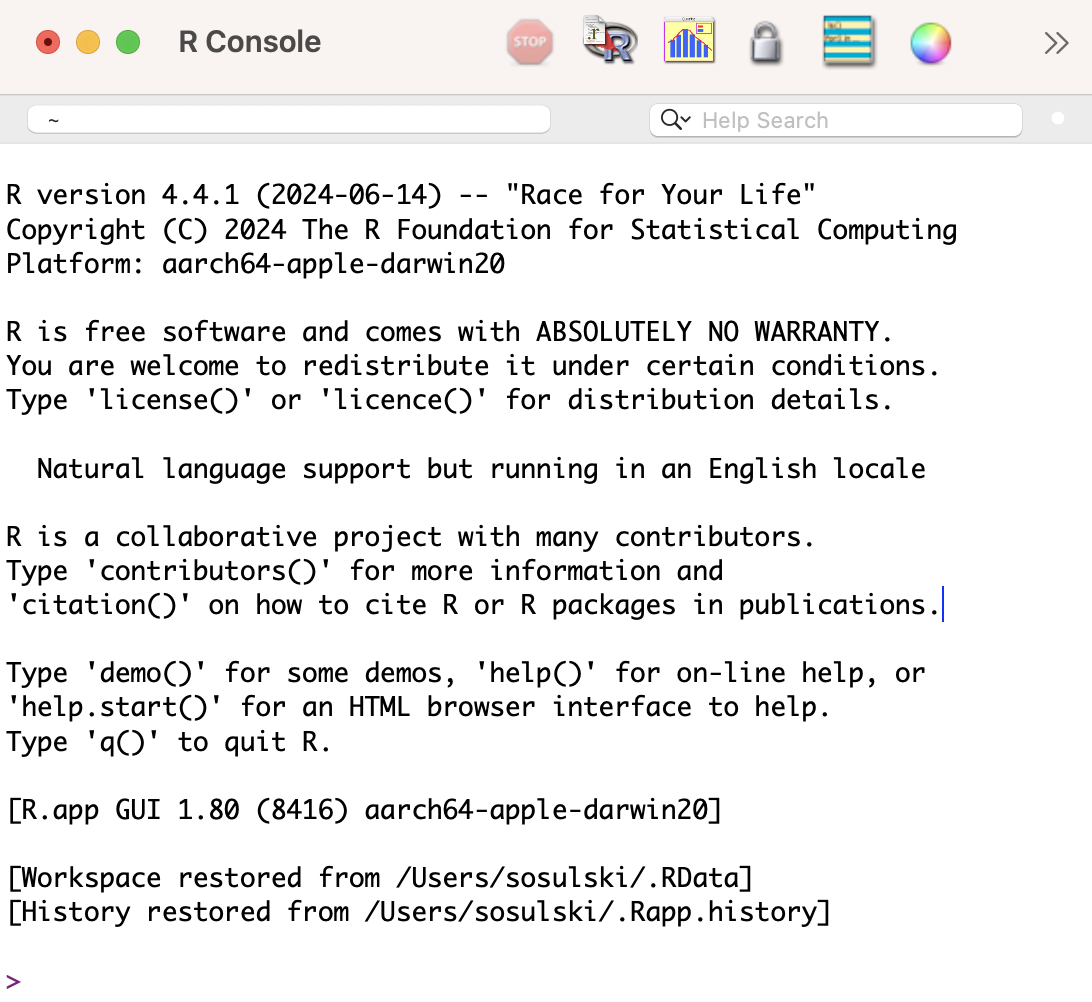
Figure 1.1: R console interface
R is the programming language. RStudio is an integrated development environment (IDE) maintained by Posit that provides a convenient interface for working with R. RStudio Desktop is available in a free, open-source edition.
Note: You must have R installed prior to installing RStudio.
Download the free RStudio Desktop installer from Posit. Select the installer for your operating system, download it, and follow the installation prompts.
3. RStudio Overview
After installation, open RStudio. RStudio will start an R session automatically. See Figure 1.2 for a screenshot of RStudio.
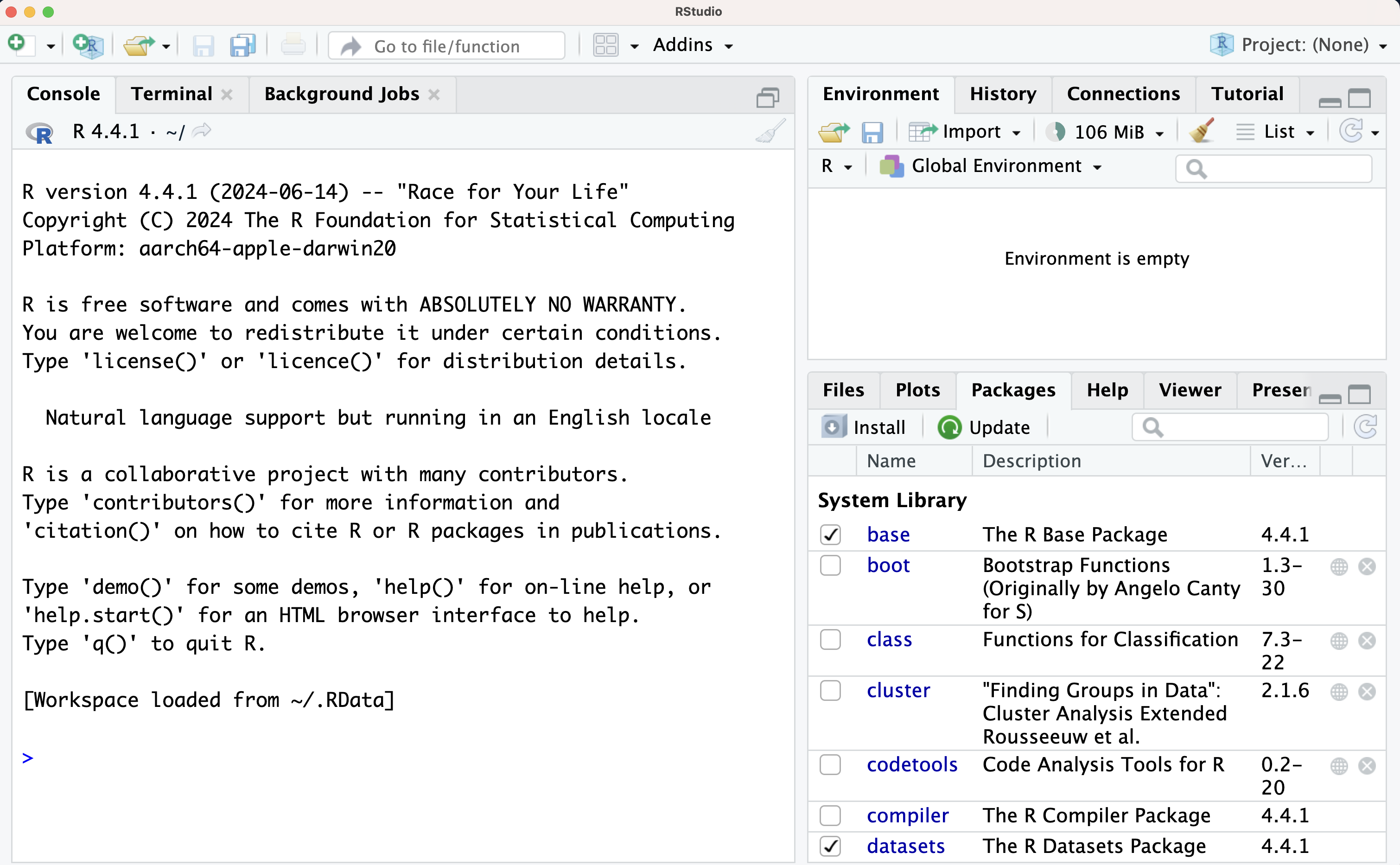
Figure 1.2: The RStudio IDE
For reference, use the RStudio IDE cheat sheet and the RStudio IDE User Guide.
4. Working in the console
The lower left quadrant of the screen is called the console pane or window, see Figure 1.3. When starting up RStudio there is a description that appears in the console window that describes R project and provides some guidance on how to get help and learn more.
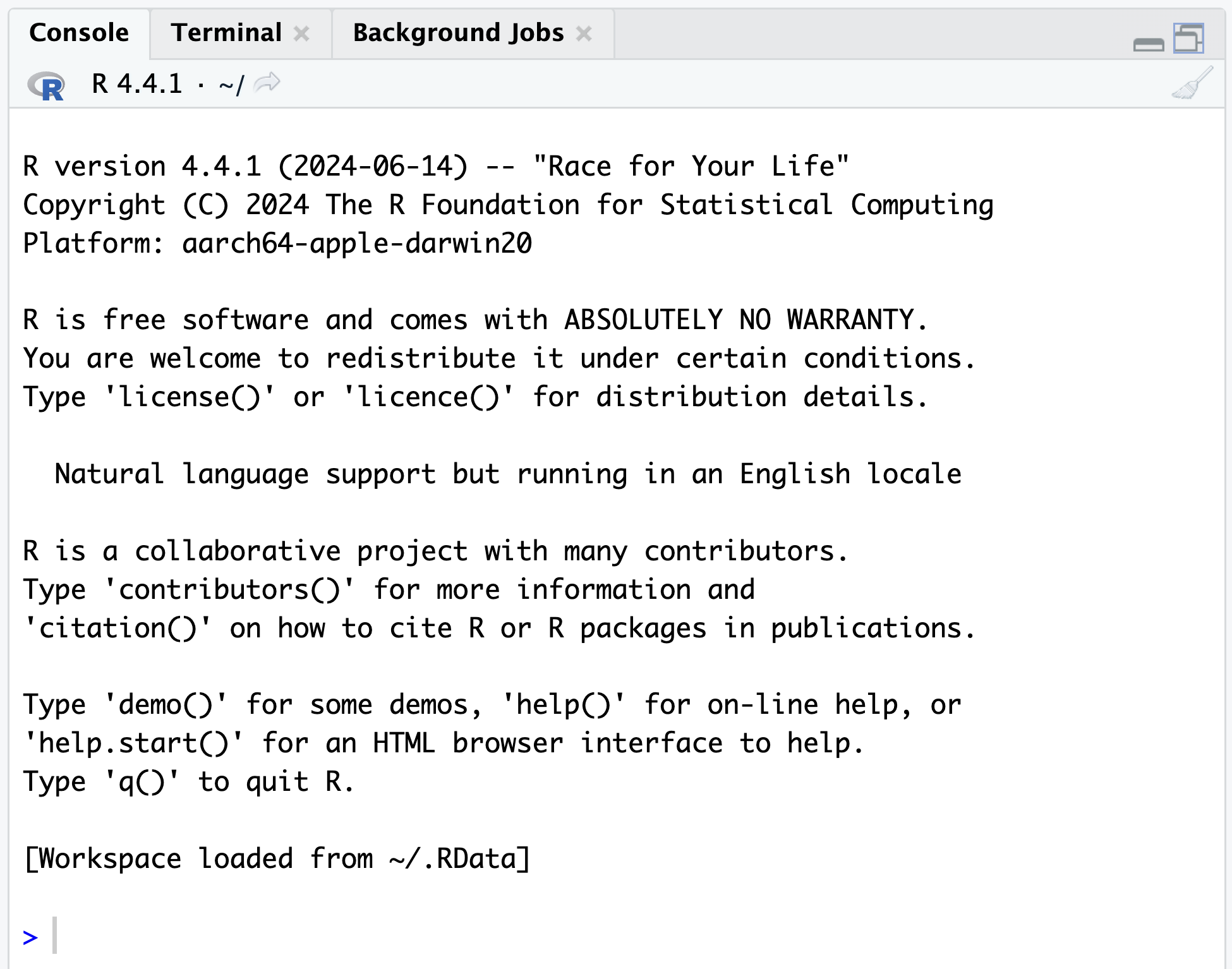
Figure 1.3: Console pane in RStudio
We can begin using R as a simple calculator.
The > is known as the command prompt. After the > we can type a command in the console window and press enter. Pressing enter executes the command we type in.
TRY IT: Type 32 + 78 at the R command prompt and press enter.
## [1] 110So what happened?
Well, R gave you a response (output) to your input (32 + 78). That response came after you pressed the enter key. It was [1] 110. It’s clear that 110 is the answer to the 32 + 78. However, what does the [1] mean? At this point you can pretty much ignore it, but technically it refers to the index of the first item on each line. (Sometimes R prints out many lines as a result. The number inside the brackets helps you figure out where in the sequence you are per line.)
Working in the console
All programming languages, including R, have a set of rules that need to be followed. Some rules are strict (such as case sensitivity) and others are less strict such as spacing.
R can tell when you are not done. A + indicates that a command has not been fully entered by you. Note the dual use of the + operator. It is used for addition and in the case below as a way to notify the user that R is still waiting for the command to be entered in an executable fashion.
For example, type 2 + and press enter.
The + is a continuation prompt: R is waiting for you to finish the expression. Enter 3 after the prompt, then press Enter to complete the calculation.
> 2 +
+ 3
[1] 5
To cancel an unfinished command and return to the > prompt, press Esc.
R is flexible with spacing. R ignores redundant spacing.
## [1] 9is the same as
## [1] 9R is case sensitive. There will be many cases where you will reference variables, functions, and different data structures. It’s important to note that R interprets a variable named X as different from a variable named x. We’ll create some of our own variables later on in this lesson.
R complains sometimes. If you make a syntax error such as:
you’ll get an error that object ‘d’ was not found. This means that d was never defined by you in R. R doesn’t know what d means. When this happens, it’s probably because we made a typo. Perhaps you meant to type 1 + 3, not 1 + d.
## [1] 4Clearing the console. The console window can become cluttered at times. To clear the screen, press Ctrl + l. (control and the letter l).
5. Saving your work in an R script
The Console is useful for quick experiments, but commands entered there are not a durable record of your analysis. An R script is a plain-text file that saves your commands so you can rerun, revise, and submit your work.
In RStudio, select File → New File → R Script, then save the file somewhere you can easily find. Type commands in the script and run the current line or selected lines with Ctrl+Enter on Windows/Linux or Command+Enter on macOS.
Try this short business example in a new script:
## [1] 4800The script stores the instructions. When you run those instructions, results appear in the Console and objects such as revenue, expenses, and profit appear in the Environment pane. Use # to add comments that explain your work.
Save your Chapter 1 exercises in a clearly labeled .R script. Chapter 3 will cover more advanced script organization, external files, and reproducible reports.
6. Simple calculations with R: Arithmetic operators
There are many arithmetic operators used in R. The first five operators are used very frequently in R and throughout this course.
| Operation | Operator | Example Input | Example Output |
|---|---|---|---|
| Addition | + | 100 + 2 | 102 |
| Subtraction | - | 93 - 3 | 90 |
| Multiplication | * | 10 * 10 | 100 |
| Division | / | 100 / 5 | 20 |
| Power | ^ | 8^2 | 64 |
| Integer Division | %/% | 65 %/% 10 | 6 |
| Modulus (remainder for integer division) | %% | 65 %% 10 | 5 |
Table 1. Arithmetic Operators
Try it. I would encourage you to practice using these operators at the R command prompt. Type in the example input provided in Table 1.
Order of operations
Consider the following examples
ex. 1
ex. 2
In ex. 1 the answer is 63 and in ex. 2 the answer is 120. Why? R follows the order of operations, where precedence follows the PEMDAS order: Parentheses, Exponents, Multiplication and Division, Addition and Subtraction. Multiplication and division have equal precedence, as do addition and subtraction; R evaluates operations with equal precedence from left to right.
In ex. 2 we used the parentheses to force R to compute the sum of 3 + 3 prior to executing the multiplication operation.
Let’s look at another example:
ex. 3
What is the answer in this case? It’s 84 right? When using operators that have the same priority in the order of precedence, such as division and multiplication R evaluates the problem from left to right. In ex. 3, the division is done before the multiplication. See ex. 4 to see how multiplication is evaluated before the division operation.
ex. 4
## [1] 200To learn more about how R gives precedence to all operators you can reference the help section in R by typing:
7. Logical operations
Logical operators are used to evaluate the “truth” of a statement. See Table 2 for a list of logical operators. For example, if you asked the question does 1 equal 1? You may be thinking why would I ever want to ask such a dumb question. I know that the two values are equal.
In R, the answer to the question would not be a yes or no, but a true or false response. Obviously, in this case, the answer is TRUE.
You would write the question like this:
## [1] TRUEWhen using logical operators, such as ==, R returns a Boolean value of either TRUE or FALSE. Did you notice that we used two equal signs to evaluate for equality? Why didn’t we use just a single equals sign? A single = can perform assignment in many contexts, but it is not the equality operator. For example if we wanted to create a variable called temperature and give it a value of 45 (we’ll learn much more about variables in lesson 2). We could simply assign it a value using the assignment operator.
Note: the conventional assignment operator in R is <-. See the example below.
We could check that our new variable temperature referenced the value we assigned it by simply typing the variable name at the console.
## [1] 45A single = can assign a value; it does not test equality.
<- is the preferred operator to use for assignment.
== denotes equality
Logical operators are useful for evaluation of certain conditions. Let’s think about a conceptual example. Suppose that you created this amazing App that remotely controlled the thermostat of your house. Using this App you want to change the temperature based the temperature of the house. To do this, compare the current temperature with a threshold and use the result to decide whether to raise the thermostat, lower it, or take no action. To begin programming this problem in R we would need to use logical operators such as >= (greater than or equal to). We would want to ask R if the temperature of the house is >= to the threshold temperature. If the result is FALSE, then we would want to take action and set the thermostat to a certain value.
## [1] FALSE| Operation | Operator | Example Input | Answer |
|---|---|---|---|
| Less Than | < | 4 < 10 | TRUE |
| Less Than or Equal To | <= | 4 <= 4 | TRUE |
| Greater Than | > | 11 > 12 | FALSE |
| Greater Than or Equal To | >= | 4 >= 4 | TRUE |
| Equal To | == | 3 == 2 | FALSE |
| Not Equal To | != | 3 != 2 | TRUE |
| Not | ! | !(3==3) | FALSE |
| Or | | | (3==3) | (4==7) | TRUE |
| And | & | (3==3) & (4==7) | FALSE |
Table 2. Logical Operators in R
Evaluating inequality
There are times where you will want to evaluate if two values are not equal. This is done using the != operator.
## [1] FALSEIn the example above, we are asking R if 4 is not equal to 4. R evaluates this statement as FALSE since 4 is equal to 4.
Evaluating multiple conditions at once
The & (and) and | (or) operators enable you to evaluate multiple conditions. For example, suppose you wanted to do something if the thermostat in your house was >= 50 and the house temperature was >= 65. Let’s say that based on both conditions being TRUE, you would set the thermostat to 50 degrees.
For purposes of this example, we need to “hard-code” our variables so we have something to test. Below, we just set our variables thermostat and temperature to some value.
The OR operator is | (vertical bar). On many keyboards it shares a key with the backslash.
Next, let’s write our evaluative statement
## [1] TRUEThis program is not quite complete. We haven’t done anything based on the result of the statement. Later on in this course, we’ll learn how to write conditional statements and control structures such as if/else, while, and for to execute commands based on the evaluation of logical operators.
Try out the other examples listed in table 2 to become familiar with all of the logical operators.
8. Functions
There are many functions that help you perform calculations. As you noticed, we can already use arithmetic and logical operators to perform calculations and evaluate data. These operators are technical functions.
To do more advanced calculations, manipulate data, and perform actual statistics we need to use functions that go beyond the basic use of operators.
Some examples of functions include:
| Description | Function | Example Input | Answer |
|---|---|---|---|
| Square Root | sqrt( ) | sqrt(144) | 12 |
| Absolute Value | abs( ) | abs(-21) | 21 |
| Round | round( ) | round(3.432,2) | 3.43 |
| Logarithm in Base 10 | log10( ) | log10(1000) | 3 |
| Logarithm in Base 2 | log2( ) | log2(8) | 3 |
| Exponential Function. Refers to e, Euler’s number3 | exp( ) | exp(3) | 20.08554 |
Table 3. Simple functions in R
All functions are followed by ( ). The parentheses are where you pass in the data you want to manipulate using the function. For example, if we want the square root of 144 we pass the value of 144 into the function sqrt(144). Behind the scenes in R the function is basically computing the square root with a line of code that reads something similar to: 144 ^ .5
## [1] 12The absolute-value function converts a negative number to its positive magnitude and leaves a positive number unchanged. Mathematically, absolute value of x is written |x| or sometimes abs(x). In R, it’s very simple:
## [1] 21The rounding function enables you to round a number to a specified number of decimal places or to a whole number.
Rounding to a whole number.
## [1] 11Rounding to 2 decimal places. In the example below, the function round( ) has two arguments: 10.5352 and 2. The first argument is the number to be rounded. The second argument specifies the number of decimal places the first argument should be rounded.
## [1] 10.54Try it. Try entering the example input from Table 3 to see how these basic functions work.
9. Getting help and ending an R session
Help
To learn more about the functions discussed in this lesson, you can always use the help built-into R. The ? operator next to any function will provide details on the function and examples.
For example, if you wanted to remember how to use the round function you could simply type:
This will launch the help window in RStudio in the lower right quadrant (see Figure 1.4). Here you can find details about various syntax and functions in R.
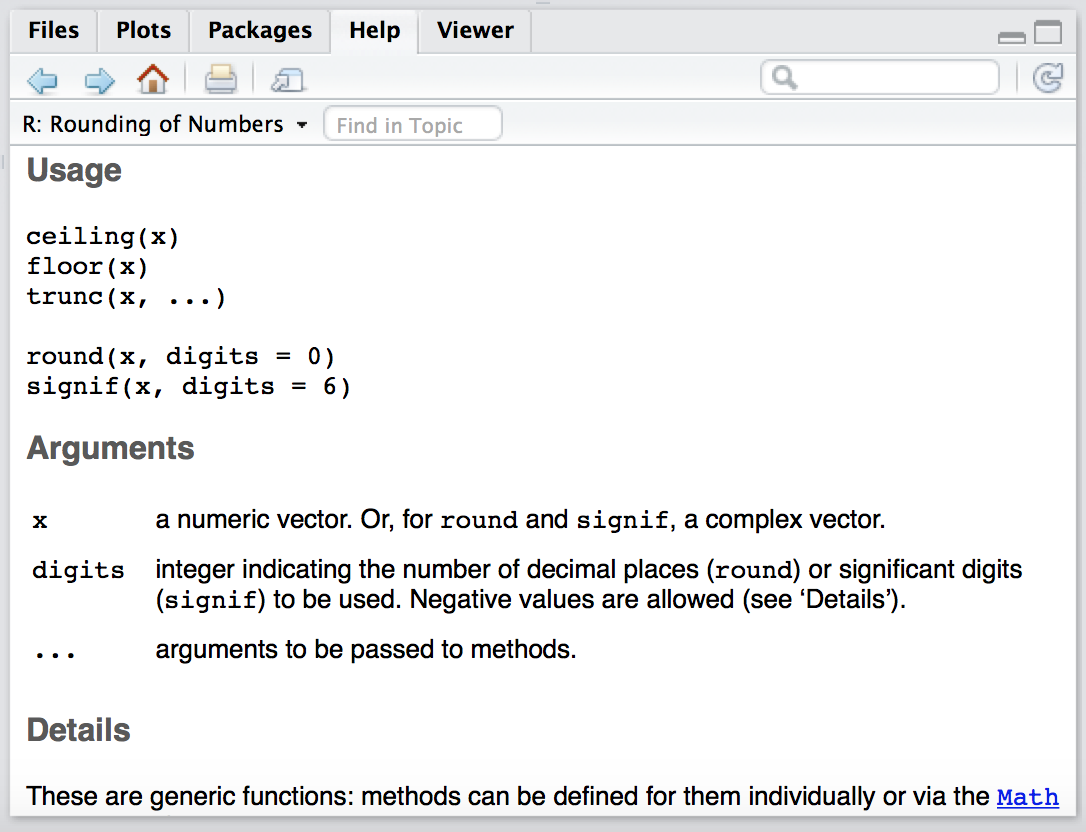
Figure 1.4: The Help Window in RStudio
Ending an R session
You can close RStudio normally from the application menu. You can also end an R session from the Console with:
If R asks whether to save the workspace image, choose No unless your instructor directs otherwise. Saving scripts and source data provides a clearer, reproducible record than automatically restoring objects from .RData. In RStudio, set Tools → Global Options → General → Save workspace to .RData on exit to Never.
10. Summary
R is a free software environment (its source code is publicly available under an open-source license) for computing and graphics. RStudio is an integrated development environment that provides a graphical user interface for using R to work with data.
There are some basic rules you need to follow when working in R. R is case sensitive. When typing any commands in R, note that it is case sensitive. There will be many cases where you will reference variables. X is different than x and Y is different than y.
R is flexible with spacing. R ignores redundant spacing.
R can tell when you are not done. A plus sign (+) indicates that a command has not been fully entered by you. The + is also used as a mathematical operator (to denote addition) and as an operator to concatenate (more on concatenation later).
R complains when we make syntactical mistakes. A syntax error is usually a typo by the user. This can be a misspelling or a reference to an undefined function, variable, data set, etc. in R.
Order of operations. R follows the PEDMAS order of operations. When using operators that have the same priority in the order of precedence, such as division and multiplication R evaluates the problem from left to right.
R Commands
• To enter a command, enter it after the R command prompt >
• Press the enter key, to execute a command you entered
• Clearing the console. Ctrl + l clears the console window
• Arithmetic operators include +, -, /, ^, and *
• Logical operators include >, >=, ==, <, <=, !=, !, &, and |
• A single = can assign a value; it does not test equality.
• <- denotes assignment, use it instead of =.
• == denotes equality
• Basic functions in R include abs( ), round( ), and sqrt( ).
11. References and resources
- The R Project for Statistical Computing (R Core Team 2024)
- Download R from CRAN
- RStudio IDE User Guide
- RStudio IDE cheat sheet
- R for Data Science (2e)
1.1 Exercise 1.1
Create an R script for your work. Label each answer with a comment, run the code in RStudio, and submit the script or rendered document requested by your instructor.
Compute the following:
(123 - 45) / 4 + 4 * (72 / 2.34 - 3)
absolute value of -88
Base 10 logarithm of 72
e^1.45 - 2.612
- Assign
1984to a variable namedyear_born. - Create
current_year <- as.integer(format(Sys.Date(), "%Y")). - Compute
agefromcurrent_yearandyear_born. - Return
TRUEorFALSEindicating whether the person is at least 18 years old.
- Assign
Given: the formula for the area of a circle is \(A = \pi r^2\). Given: \(A = 100\).
- Write statement to find r. (Hint: utilize “sqrt” and “pi” functions)
- Given: went to lunch and pre-tax bill was $45.90
- Compute the total after adding NYC sales tax of 8.875%.
- Compute a 15% tip on the pre-tax bill.
- Compute a 20% tip on the pre-tax bill.
1.2 Exercise 1.2
Create an R script for your work. Label each answer with a comment, run the code in RStudio, and submit the script or rendered document requested by your instructor.
- Compute the following:
Round the square root of 50 to the fourth decimal
- Assign a variable
customersto 500 - Assign the value
20to a variable namedpizza_price
Task:
- Assign a variable
todays_revenue(customers*pizza_price) and compute today’s revenue
- Is today’s revenue greater than yesterday’s revenue of $7,000 and less than tomorrow’s projected revenue of $11,000? Show the code that would answer the following question.
1.3 Assignment 1a
Create an R script for your work. Label each answer with a comment, run the code in RStudio, and submit the script or rendered document requested by your instructor.
- Which of the following is a logical operator?
/ | - ^- What value does R return in the statement below?
3 >= 4- What is the result of this calculation?
(45 + 3) * 43 + 3^2- How would R evaluate the following?
carspeed = 70
speedlimit = 65
carspeed > speedlimit- How would R evaluate the following?
(2+2 == 4) | (2+2 == 5)- How would R evaluate the following?
!FALSE- What is the result of this function?
round(33.2321435452, 2)- What is the result of this function?
sqrt (64)- What is the result of this statement?
sqrt(64) == 64 ^.5- What is the result of this statement?
abs(-32)- Which of the following is an arithmetic operator?
*, |, &, !- What is wrong with this code?
2 + 3 *4 + sqrt[100]
1.4 Assignment 1b
Answer the following questions in using the console in R. You can cut and paste your answers to a Word document organized by question.
How would you assign a value of 7 to a variable called
a?Assign value 3 to a variable
b. How would you check if variableaand variablebare equal?What is the result of this calculation:
7 %% 3?What is the result of this calculation:
7 %/% 3?What is the result of this calculation:
7 / 3?Round the result in question 5 to 2 decimal places.
How would R evaluate
(5==4) | (4==4)?How would R evaluate
(5==4) & (4==4)?What is the result of
!(4==5)?What’s wrong with this code below?
Sqrt[25]
How would you get help in R?
How would R evaluate the following stock value?
3.42/(0.11 - 0.07)